Work Orders in the FieldFX Mobile App
|
The Work Order module is new in FieldFX 26R1. |
The FieldFX Mobile App supports work orders, enabling mobile mechanics and field technicians to manage work orders, tasks, labor tracking, stock, reports, and DataGuide forms directly from the field.
Unlike in the legacy FX Mobile, work orders in the FieldFX Mobile App are shown by selecting Work Orders from the side menu. A list of work orders appears that are based on the work order information in FieldFX back office.
You can view, create, and edit work orders in the FieldFX Mobile App. Work orders cannot be deleted in the app.
Prerequisites
-
The user must have an EAM license to access the work order object and associated objects (tasks, task steps, task labor, planned stock, etc.).
-
A system administrator must enable the Work Order functionality in the user’s sync profile. See Sync Profile Configuration.
Sync Profile Configuration
A system administrator configures work order access through the Sync Profile Manager:
-
Enable Work Order access — The sync profile determines whether a user can access the Work Order module. When enabled, the profile also grants access to the following related objects:
-
Task
-
Task Steps
-
Task Labor
-
Planned Stock
-
Inventory Transactions
-
Warehouse (look-up object — the admin defines which warehouses the user profile has access to)
-
Stock Items (look-up object — the admin can define which stock items the user has access to, for example by warehouse and stock item type)
-
-
Landing page — If the user’s sync profile has access to multiple top-level objects (for example, both Job and Work Order), the admin can define which page the user lands on when opening the app.
-
Field and record permissions — The sync profile controls which fields and records are available to the user for work orders and all related EAM objects.
-
Layouts — The sync profile defines the layout for work order list and detail views, as well as layouts for related objects (tasks, task steps, task labor, planned stock).
-
Delete permissions — The delete option is disabled for the Work Order object. Work tasks, work task steps, and task labor can be deleted in the app (based on permissions).
Work Order List Layout
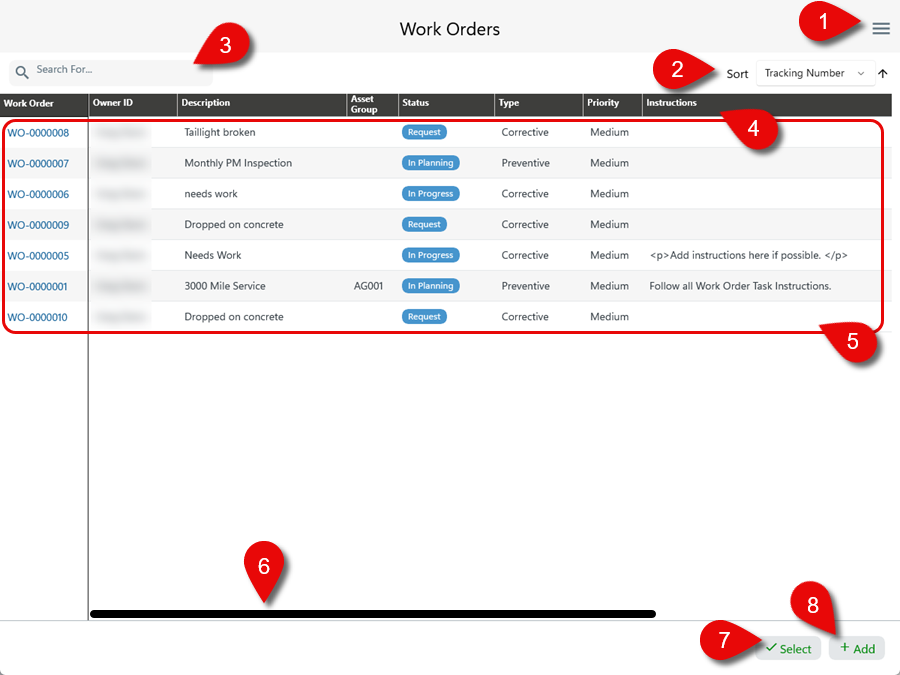
| Callout | Name | Description | ||
|---|---|---|---|---|
1 |
Menu |
Tap the menu icon to open the side menu where you can select other areas of the app to view.
You can also access the sync options and diagnostics, about information and sign out from the side menu. |
||
2 |
Use this option to sort the work orders by the following:
Tap the arrow next to the sort option to change the sort order from ascending to descending. |
|||
3 |
Enter a search term in this box and click / tap Enter to search for work orders matching the entered term. Any of the columns are scanned for the matching entered term and the results are shown. |
|||
4 |
These columns organize the work orders in the list:
Use the horizontal scroll to see the remaining columns in the list:
|
|||
5 |
Work Order List |
These columns show the work orders in the list. Tap on a work order to view the details of that work order. |
||
6 |
Use the horizontal scroll to see other columns in the work order list. |
|||
7 |
Select |
Tap here to select the work order by the circle in the list if you want to select multiple work orders. Once selected, you can copy them as new work orders. |
||
8 |
Add |
Tap here to add a new work order. |
Work Order Detail Layout
|
The fields shown in the work order details may differ based on how your administrator has configured the work order layout in FieldFX back office. The screenshots in this documentation show a sample work order details screen and are meant to provide an example of how work orders are displayed in the FieldFX Mobile App. |
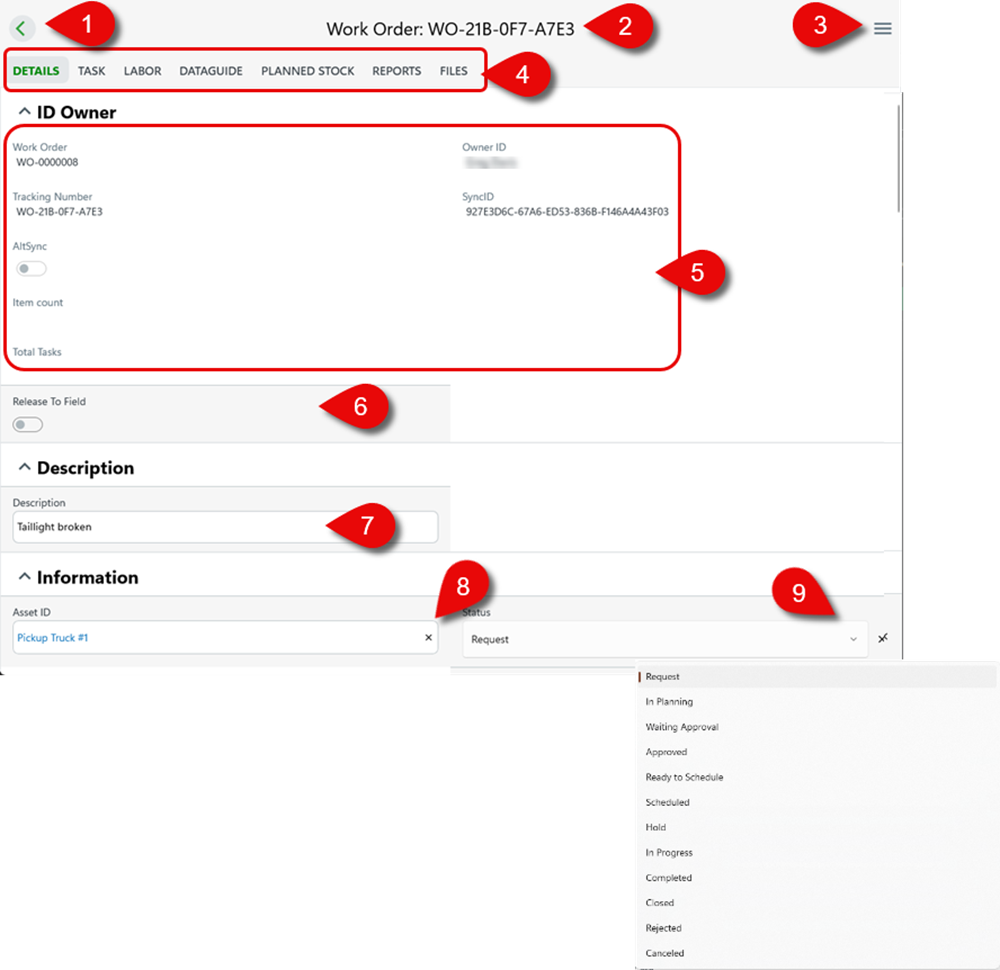
| Callout | Name | Description |
|---|---|---|
1 |
Back arrow |
Returns to the list of Work Orders. |
2 |
Work Order name |
The name of the work order. |
3 |
Menu |
Tap to switch to view a list of Jobs or Tickets. |
4 |
Work Order tabs |
View different parts of the work order:
|
5 |
Read-only |
Fields in the work order that can’t be changed. |
6 |
Toggle |
If available, toggle to on to enable. |
7 |
Input field |
If permission is granted, the user can tap into the field and change it. |
8 |
Remove entry |
Tap the X to remove the current entry. |
9 |
Drop down |
Tap the down arrow to view selections. The values may be different depending on the field. |
10 |
Vertical Scroll |
Tap and hold to scroll down to view more fields in the work order. |
Work Tasks
For a overview of work tasks, including field descriptions and how they relate to work orders, see Work Tasks.
For information about predefined work task templates, see Standard Work Tasks.
In the FieldFX Mobile App, you can:
-
View tasks associated with a work order in a grid format.
-
Create new work tasks for a work order.
-
Edit work tasks individually or use Edit to enter grid edit mode.
-
Use Select mode to copy or delete work tasks (based on permissions).
All standard work task fields are available for create and edit based on the layout defined in the sync profile. Validation rules, required fields, and field updates apply when creating or editing a work task.
Work Task Steps
For a full overview of work task steps, including field descriptions, see Work Task Steps.
In the FieldFX Mobile App, you can:
-
View, create, and edit work task steps associated with each work task.
-
Edit work task steps individually or use Edit to enter grid edit mode.
-
Use Select mode to copy or delete work task steps (based on permissions).
All standard work task step fields are available for create and edit based on the layout defined in the sync profile. Validation rules, required fields, and field updates apply when creating or editing a work task step.
Task Labor
For a full overview of task labor, including field descriptions and labor rate configuration, see Task Labor.
In the FieldFX Mobile App, task labor records allow you to track the time that you or another mechanic spend working on a work order. Multiple mechanics can work on the same work order.
|
In the FieldFX Mobile App, task labor can be created at the Work Order level or the Work Task level. This differs from FieldFX back office, where task labor can also be added directly to a work task. See Task Labor for the back office workflow. |
-
Create labor records from the work order level.
-
Track start and end times for labor entries. A formula calculates the duration.
-
Use Select mode to copy or delete a labor item.
-
All labor records are visible from the work order.
All standard task labor fields are available for create and edit based on the layout defined in the sync profile. Validation rules, required fields, and field updates apply when creating or editing a task labor record.
Planned Stock
For a full overview of planned stock, including field descriptions and how planned stock quantities are calculated, see Planned Stock.
In the FieldFX Mobile App, you can manage the parts and materials pre-planned for a work order:
-
View a list of planned stock on the work order.
-
Modify planned stock quantities before issuing.
-
Issue planned stock against the work order by entering an issue quantity (which can differ from the planned quantity).
-
Issue a negative quantity of planned stock to correct mistakes from a previous issue action.
You cannot issue a negative quantity greater than the quantity already issued for that planned stock item.
-
View a read-only list of inventory transactions associated with each planned stock item.
|
You cannot manually create a new planned stock record in the FieldFX Mobile App. Planned stock records are created in FieldFX back office or are automatically generated when you add unplanned stock (see Unplanned Stock). |
Validation rules, required fields, and field updates apply when editing a planned stock record.
Unplanned Stock
Unplanned stock allows you to add parts from a warehouse that were not pre-planned for the work order.
-
View all available stock items.
-
Apply a warehouse filter to the stock item list.
-
Search and sort through the list of stock items within a warehouse.
-
Select and add multiple stock items from within the same warehouse.
-
You can only issue a quantity less than or equal to the on-hand quantity of the stock item. A quantity of zero results in no issue. Negative quantities are not permitted for unplanned stock.
When you add a stock item from a warehouse, the app automatically creates a planned stock line (where the planned quantity equals the issue quantity).
Inventory Transactions
When you issue stock to a work order (planned or unplanned), the system records an inventory transaction. Each planned stock record has its own transaction tab in the Planned Stock details view. The inventory transactions list is a read-only audit of all movements (adds and subtracts) for that item.
See Inventory Transactions for more information about inventory transactions.
Reports
You can generate customer-facing documents from the work order.
-
View available report templates associated with the work order record.
-
Generate customer-facing documents from report templates.
-
Attach files to a work order.
See Reports for more information about reports.
DataGuide Forms
If your sync profile grants access to the DataGuide module, a DataGuide tab appears on the Work Order object.
You can view, edit, or create DataGuide forms associated with the work order record.
See DataGuide Forms for more information about DataGuide forms.
Step-by-Step Guides
|
The steps outlined below are for reference purposes only. The actual steps may vary depending on your device and the version of the FieldFX Mobile App you are using. |
-
The DataGuide tab is only visible if your sync profile grants access to the DataGuide module.
Troubleshooting
If you are not seeing expected work orders in the app:
-
Ensure that your sync profile is configured to include the Work Order module.
-
Verify that you have an EAM license.
-
Confirm that you have synced the app recently.
-
Contact your administrator if you have questions about which work orders should be visible to you.