Add/Remove Users in a Sync Profile
In the Sync Profile Manager Admin Tool, you can either add new users to or delete existing users from an existing sync profile. This is a marked change from the old sync wizard admin tool where you had to add users to a sync profile from else where in FieldFX Back Office.
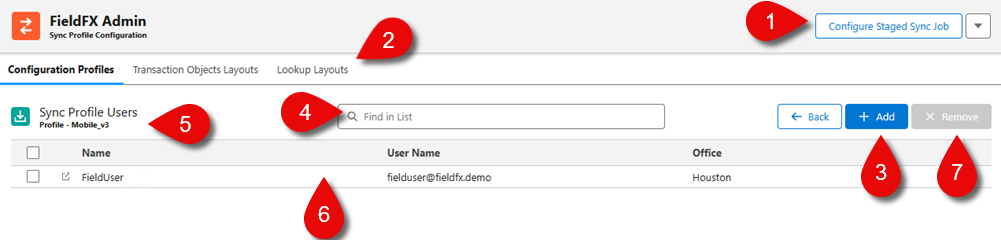
| Callout | Name | Description | ||
|---|---|---|---|---|
1 |
Configure Staged |
Click this button to configure the staged sync job for the selected sync profile. |
||
2 |
Tab Sections |
The different tabs of the tool. |
||
3 |
+ Add |
Click this button to add a user to the sync profile.
|
||
4 |
Find in List |
Enter text to auto-filter and display only the results matching what was entered. |
||
5 |
Title |
This shows the users attached to the sync profile. |
||
6 |
Users List |
This shows the users attached to the this profile with their Name, User Name, and Office. Click |
||
7 |
X Remove |
Select the user in the list and click the button to delete the user from the sync profile. |

-
If adding a user to a sync profile. ..Click + Add button.
The Select Users To Add - <sync profile name> modal appears. .. Select the user to add them to the sync profile.
+ Details of the user are shown in the Name, User Name, Office, and Current Sync Profile columns.
-
If you want to only see unassigned users, click the Unassigned Users Only checkbox.
If left unselected, all the users in the org are shown. -
Click Add to add them to the sync profile.
The user is added to the sync profile.
-
-
If removing a user from a sync profile, click the X Remove button to open the Select Users to Remove - <sync profile name> model.
-
Select the user to add them to the sync profile.
Details of the user are shown in the Name, User Name, Office, and Current Sync Profile columns.
-
If you want to only see unassigned users, click the Unassigned Users Only checkbox.
If left unselected, all the users in the org are shown. -
Click Remove to remove them from the sync profile.
The user is removed to the sync profile.
-