Job Resources
An Operations Manager can plan a job in FieldFX and add the resources needed for a job. The purpose is to identify the inventory needed for the job so that sufficient inventory is available for commitment.
A job is created or planned in Back Office. Mobile users can see these resources in the FieldFX Mobile App so they know what or who is assigned. The resources are tracked in job logs or tickets for time, usage, and billing information.
For types of resources, see Resource Examples.
Each Job Resource record links to a resource like a person, piece of equipment, or inventory item. The record identifies what is needed, when, how much and for what purpose.
| Job Resource | Job |
|---|---|
Tracks a single person, crew, or piece of equipment |
Can have multiple resources, each with their own status |
Object Schema
Job Resources use the FX5__Job Resource__c object.
|
These objects and fields are typical for a Job Resource object. Depending on your org’s configuration and workflow, not all objects and fields may appear or use the names shown below. |
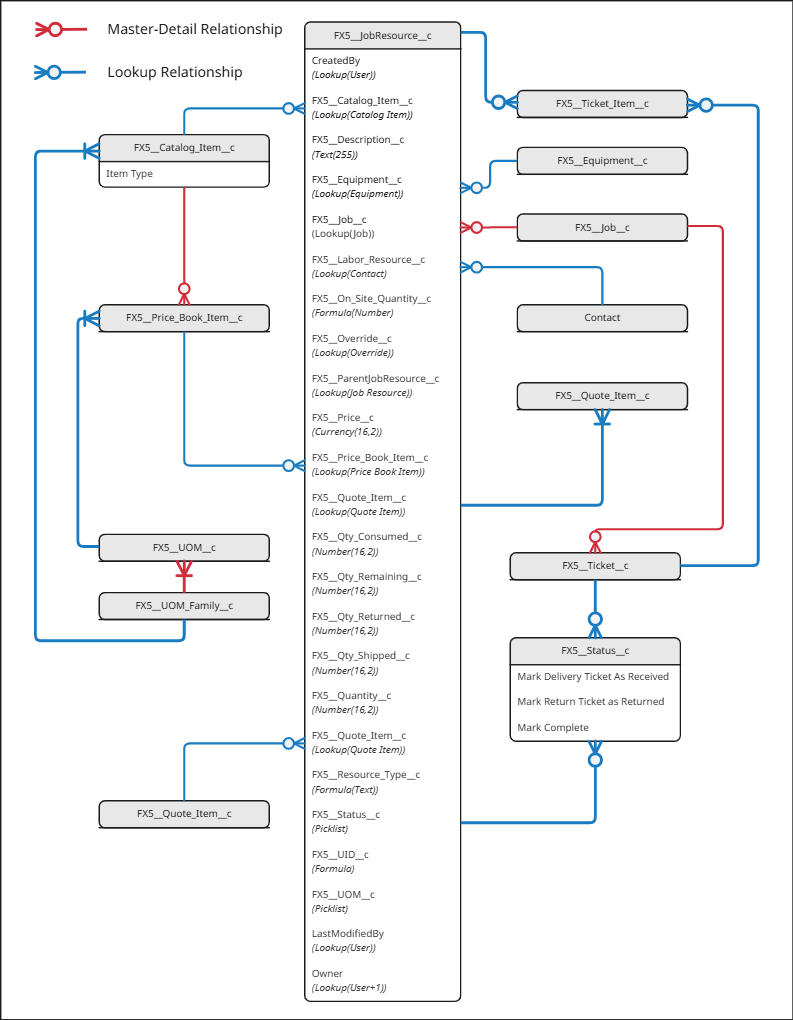
| Category | Object | Description |
|---|---|---|
Auto Number |
The name of the resource |
|
Checkboxes |
Checkbox to indicate if this is a parent bundle. Set automatically when the Job Resource’s Price Book Item has |
|
Currency |
The price of the resource |
|
External ID |
An automatically generated unique ID, up to 36 characters, for that Job Resource across devices and environments |
|
Formula |
Equipment Name |
|
Equipment Serial Number |
||
Lookup |
Lookup to the parent Job Resource in a parent-child bundle. Must be included in the mobile sync profile for the Job Resource object, or the parent-child relationship breaks when resources are added to a Field Ticket in the FieldFX Mobile App. See Generating Field Tickets from Bundles. |
|
User Lookup |
||
Catalog Item Lookup |
||
Equipment Lookup |
||
Job Lookup |
||
Override Lookup |
||
Price Book Item Lookup |
||
Quote Item Lookup |
||
The user who last modified the resource |
||
|
Owners of the Job Resource |
|
Number |
The quantity consumed |
|
The returned quantity |
||
The shipped quantity |
||
Picklist |
The Job Resource’s status |
|
The Unit of Measure of the resource |
||
Text |
Text(255) |
On Site Quantity Custom Field
In Job Resource Object, the On Site Quantity Custom Field Formula Options were changed to the following formula:
CASE( Text(FX5__Catalog_Item__r.FX5__ffx_Item_Type__c),
"bulk consumables", FX5__Qty_Delivered__c - FX5__Qty_Consumed__c - FX5__Qty_To_Be_Returned__c - FX5__Qty_Returned__c,
"bulk asset", FX5__Qty_Delivered__c - FX5__Qty_To_Be_Returned__c -  FX5__Qty_Returned__c,
"serialized asset", FX5__Qty_Delivered__c - FX5__Qty_To_Be_Returned__c - FX5__Qty_Returned__c,
"serialized consumable", FX5__Qty_Delivered__c - FX5__Qty_Consumed__c - FX5__Qty_To_Be_Returned__c -  FX5__Qty_Returned__c,
"service", FX5__Quantity__c - FX5__Qty_Consumed__c,
"labor", FX5__Quantity__c,
0
)
Resource Examples
The following types of resources that can be added to a job:
| Type | Example | Definition |
|---|---|---|
Bulk Assets |
Drill Pipe |
The customer needs to ship a quantity of this item, but there is no tracking of each individual item (such as each individual segment of pipe). It is not consumed on site, but gets utilized and eventually returned in its entirety. |
Bulk Consumables |
Sand |
The customer needs to ship a quantity of this item, without tracking each individual item (track each bag of sand). At the end of the job, if any quantity is not consumed, it will get returned, but the assumption is that all of it is consumed on the job. |
Labor |
Engineer |
The customer needs to send this type of item on site and track its utilization (such as days worked while on site) for billing. This type of item is not shipped (on a truck) and does not get returned or consumed. |
Serialized Asset |
Cargo Basket |
The customer needs to send this type of item on site to be utilized. The item is not consumed and needs to be returned at the end of the job. These are high-value items and need to be tracked individually. |
Serialized Consumables |
Explosive Charge |
The customer sends out this type of item on site and the item is consumed. They need to be tracked individually for regulatory purposes. If the item is not consumed, it gets returned, but the assumption is that it will get consumed in its entirety by the end of the job. |
Service |
Per Diem |
The organization charges their customer for this type of item but this item is not shipped or returned at the end of the job. |
Resource Statuses
Job Resources can have the following default out-of-the-box statuses:
| Status | Description | ||||||
|---|---|---|---|---|---|---|---|
New |
When the Job Resource is created. If the Job Resource is part of a parent-child bundle, the auto-status follows if it has the following Item Type:
|
||||||
In Transit |
When a delivery ticket is generated from a parent-child bundle:
|
||||||
Shipped |
This status is triggered when:
|
||||||
On Site |
This status is triggered when:
|
||||||
Returned |
This status is triggered when:
|
||||||
Job Complete |
This status is used when the resource has completed all tasks, shifts, or service work they were scheduled for. The status informs dispatchers and back office the resource is finished and can be reassigned to other work. This helps avoid duplication or overlapping time entries. On mobile, it typically drives whether the resource can continue logging time or expenses against the job.
To understand the logic behind this status, see [JRCompStatLogic]. Example 1. Job Closed Status Use
A crew member has finished with their tasks but equipment resources are still on location. The crew member’s Job Resource is marked as Job Complete but the job itself is still open until everything else is wrapped up. |
See inventory movement examples for delivery/return tickets and manual status change.
Job Complete Status Logic
The Job Complete status indicates when a Job or individual Job Resource(JR) is considered finished and ready for the next workflow step, such as invoicing, closing, or synchronization with Back Office.
The logic works as follows:
|
Each JR has its own status. These statuses roll up to determine the overall status.
Job Complete = all related JRs complete + all items closed out. |
||||||||
|
In FieldFX Mobile, when a field user marks their JR as complete:
|
||||||||
|
If a job has three assigned resources:
The job remains In Progress until Technician B also marks their JR as Job Complete. When that happens, FieldFX automatically promotes the Job status to Job Complete. |
||||||||
|
Admins can control this logic by:
|
You would create a return ticket item depending on the type of Job Resource:
| If Job Resource is… | And… | Then set… |
|---|---|---|
Serialized Assets |
"To Be Returned Qty" = |
|
Serialized Consumable |
where the "On Site Qty" is greater than 0 |
|
Bulk Asset |
||
Bulk Consumable |
where the "On Site Qty" is greater than 0 |
Record Types
Job Resources use these three specific record types:
| Type | Description |
|---|---|
Return |
Used to indicate a return ticket. |
Delivery |
Used to indicate a delivery ticket. |
Field |
Used to indicate a field ticket. |
How Job Resources Work
-
In Back Office, a system administrator, dispatcher, or planner can add the Job Resource to a job.
They set up the resource types and add personnel, equipment, and inventory as Job Resource records. -
The system administrator adds the resources to the job in Back Office by opening the Job Resource Related List and add the needed resources. They set the dates, roles, quantities, and notes for each resource.
-
When the mobile user syncs, the Job Resources are synced from back office. The Job Resources appear when the mobile user opens the job.
Field users can log actual usage (hours, equipment used, the amount of material used). -
Job Resource data can be used for billing and payroll.
Resources data feeds into invoices, payroll reports (if configured), and job costing.
Job Resource Bundles
Job Resources support parent-child bundles. A bundle groups a parent Job Resource with one or more child Job Resources so they can be added, tracked, and delivered together.
A Job Resource becomes a parent when its Price Book Item has the FX5__Enable_Dynamic_Parenting__c checkbox set to true.
Parent Quantity
The quantity of a parent Job Resource is locked to 1 and cannot be changed. If adding a bundle from a Price Book or Quote Item with a quantity of n, the system creates n separate Job Resource bundles, each with its own set of child items.
|
If the Price Book Item bundle includes a serialized asset or serialized consumable with a quantity greater than 1, the system does not create separate child items for each individual serialized item. This is a known system limitation |
Bundle Status Behavior
When a parent-child bundle is added to a Job, the initial statuses depend on the parent’s Item Type:
Parent Item Type |
Parent Status on Add |
Child Status on Add |
Service |
On Site |
On Site (all children, regardless of child item type) |
Labor |
On Site |
On Site (all children, regardless of child item type) |
All other types |
New |
Child labor/service items → On Site |
When a Delivery Ticket is created from a parent bundle whose Item Type is not Service or Labor, the parent and any child Job Resources included on the Delivery Ticket transition to In Transit. Child Job Resources whose Item Type is Service or Labor are excluded from the ticket and retain their current status.
Generating Delivery Tickets from Bundles
When you select a parent-child bundle on the Job Resources grid and click Generate Delivery Ticket:
. The Create Delivery Ticket dialog displays only the parent item. Child items are not shown in the dialog.
. Clicking Create Ticket generates the delivery ticket with both the parent and all child ticket items.
. Each created ticket item (parent and child) has a Job Resource link (FX5__Job_Resource__c) back to its corresponding Job Resource record.
. Child Job Resources with Item Type = Labor or Service are excluded from the delivery ticket items.
|
Delivery tickets created from Job Resource bundles follow the same rules as other tickets created from Job Resources: * The Rule Engine does not run. * Price Book Required Items do not run. * No additional ticket items are auto-added by rules or required-item logic. Add any needed items to these tickets manually. |
Generating Field Tickets from Bundles
When a field user in the FieldFX Mobile App adds a parent-child Job Resource bundle to a Field Ticket:
-
Only the parent item is displayed in the item picker. Child items are not shown individually.
-
Adding the parent item adds both the parent and its child items to the Field Ticket grid, with the parent-child relationship preserved.
-
If the parent Item Type allows a quantity greater than 1 (that is, it is not a Serialized Asset or Serialized Consumable), the same bundle can be added across multiple Field Tickets.
-
Mobile validates the remaining quantity at both the parent and child level, and does not display a child item once its remaining quantity reaches 0 (for example, because it was already consumed on a prior Field Ticket).
Example 2. Bulk Asset / Drill PipeA parent-child bundle includes Drill Pipe, a Bulk Asset, as a child item with a quantity of 5.
A field user creates Field Ticket 1 and uses all 5 units of Drill Pipe. When the field user later creates Field Ticket 2 for the same bundle, Drill Pipe no longer appears in the item picker, since its remaining quantity is 0. The parent item and any other child items that still have remaining quantity continue to be available to add.
-
Child items can be deleted from a Field Ticket if they are not needed, the same as with regular (non-bundle) ticket items.
-
Dynamic parenting behaves the same way on Field Tickets as it does on other ticket types (Delivery, Return, and manually created ticket items).
|
For the parent-child relationship to display correctly on Field Tickets in the FieldFX Mobile App, |
Parent–child Job Resource bundles for Mobile
To maintain parent–child bundles when Job Resources are added to Field Tickets from the FieldFX Mobile App, make sure the following field is included in your Job Resource sync and/or field configuration:
Parent Job Resource
-
FX5__ParentJobResource__c– stores the parent Job Resource for bundle children.
If this field is not synced to Mobile, Job Resource items that are configured as a parent–child bundle on the Job can lose their relationship when they are added to a Field Ticket in Mobile. This can result in:
-
Parent and child items appearing as independent lines on the Field Ticket.
-
Ticket structures that do not match the Job or related Delivery Tickets.
-
Potential downstream billing and reporting inconsistencies. When parent–child bundles are configured correctly and
FX5__ParentJobResource__cis synced, the FieldFX Mobile App preserves the parent–child structure on the Field Ticket and aligns with the behavior of Delivery Tickets in Salesforce.
How Delivery/Return Tickets Work
These are digital records for documenting and managing delivery of materials, equipment, or services to a job site. They provide proof of delivery and track what was delivered, when and who delivered it, and associated job or work order.
|
Return tickets created from Job Resources (for example, using a Create Return Ticket button on the Job Resource grid) are treated the same way as delivery tickets created from Job Resources:
Add any needed return‑related items to these tickets manually. |
How Delivery/Return Tickets Work in the FieldFX Mobile App
When using Job Resources in the FieldFX Mobile App, a mobile user can do the following:
Viewing Resources |
When a field user opens a job, the Resources tab appears if it is enabled. The tab lists all the resources (like crew members, trucks, tools, etc.) assigned to the job from Back Office. They can only see that they have permission to view. |
Crew Assignments |
If they are a supervisor/foreman, they may be able to see all crew assignments, depending on how the system is configured. If they are a supervisor/foreman, they can sometimes see all the crew assignments that depend on the setup. |
Resource Details |
A resource can show (if configured): * Person or Equipment name * Assigned role * Scheduled start and end times (if dispatch is used) * Resource status |
Clock In / Clock Out |
If timekeeping is used with resources, field users can clock in and clock out from their mobile device. Time entries are then associated with the Job Resource, which helps payroll and billing accuracy. |
Mobile Editing |
Job Resources cannot be added or removed by a field user in the app. That can only happen in Back Office. Field users may be able to update details depending on their permissions. |
Field Ticket Bundle Behavior |
When adding a parent-child Job Resource bundle to a Field Ticket from the Mobile App, only the parent item is selectable, and available quantity is validated at both the parent and child level across multiple Field Tickets. See Generating Field Tickets from Bundles for full details. |
JSD (Job Scheduling & Dispatch) |
Dispatchers schedule resources in JSD and the assignments flow directly to the mobile app. Field Users see their scheduled jobs and their role instantly. |
Inventory Movement Examples
The movement of Job Resources is different in the Delivery/Return Tickets and Manual Status Change flow.
These are examples of how Job Resources in inventory could move through statuses. Specific movements and statuses are dependent on how your org is configured and operates.
Delivery/Return Tickets
These Delivery and/or Return Ticket example tables show the changes for each type of Job Resource and its quantities as it’s stepped through the different stages in being used. These stages and statuses shown may be different depending on your org’s configuration and workflow.
|
If you create a Return Ticket for an inventory‑tracked Job Resource where the on‑site quantity is 0 and a quantity is marked to be returned, the Job Resource Status in back office now updates to In Transit. When generating a Delivery Ticket from a parent-child Job Resource bundle:
See Generating Delivery Tickets from Bundles for details. |
The types are shown in rows with the states shown in columns.
| Type | Initial State | Delivery Ticket Created |
Delivery Ticket Received |
Field Ticket Created |
Return Ticket 1 Created |
Return Ticket 2 Created |
Return Ticket 1 Marked Return |
Return Ticket 2 Marked Return |
Job Status Changed to Complete |
|---|---|---|---|---|---|---|---|---|---|
Bulk Consumable |
New |
In Transit |
On Site |
In Transit |
Returned |
Job Complete |
|||
Serialized |
New |
In Transit |
On Site |
In Transit |
Returned |
n/a |
Job Complete |
||
Bulk Asset |
New |
In Transit |
On Site |
In Transit |
n/a |
Returned |
n/a |
Job Complete |
|
Serialized |
New |
In Transit |
On Site |
Can’t Return, Nothing to return |
Job Complete |
||||
Labor |
On Site |
||||||||
Service |
On Site |
||||||||
Manual Status Change
These Manual Status Change example tables show each type of Job Resource and its quantities as it moves through the different stages in being used. These stages and statuses shown may be different depending on your org’s configuration and workflow.
The types are shown in rows with the status in columns.
| Type | Initial State | Delivery Ticket Created |
Delivery Ticket Received |
Field Ticket Created |
Return Qty Updated |
Job Status Changed to Complete |
|---|---|---|---|---|---|---|
Bulk Consumable |
New |
In Transit |
On Site |
Returned |
Job Complete |
|
Serialized |
New |
In Transit |
On Site |
Returned |
Job Complete |
|
Bulk Asset |
New |
In Transit |
On Site |
Returned |
Job Complete |
|
Serialized |
New |
On Site |
Job Complete |
|||
Labor |
On Site |
Job Complete |
||||
Service |
On Site |
Job Complete |
||||
Setup and Use
See Job Resources Setup for steps on setting up Job Resources.
See Job Resources Use for steps on using Job Resources.
FAQ and Troubleshooting
|
If you notice that some delivery or return tickets do not include automatically added items from the Rule Engine or Price Book Required Items, check how the ticket was created.
|
Recommended Reading
For more information, see:
| FieldFX Documentation | Salesforce Documentation |
|---|---|
|