Transaction Objects Layout Editor Reference
This is the reference for the callouts, tabs, and buttons in the Transaction Objects layout editor.
Editor Layout Callouts
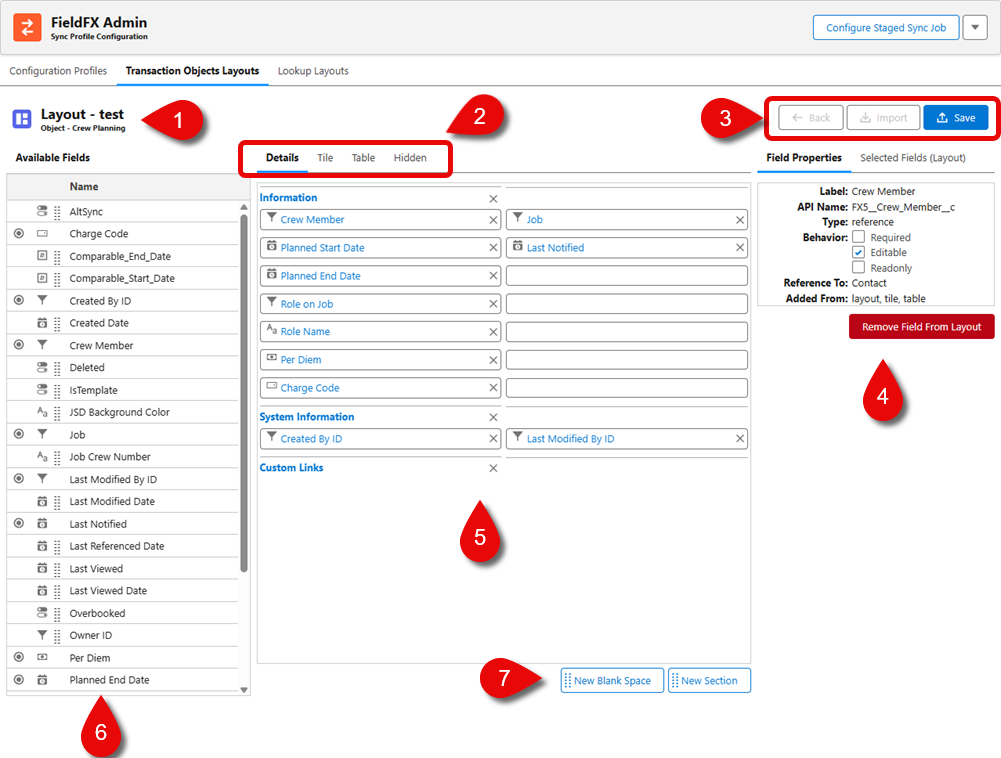
| Callout | Name | Description | ||||||||||
|---|---|---|---|---|---|---|---|---|---|---|---|---|
1 |
Layout Title |
The name of the layout plus the object that the layout is based on. |
||||||||||
2 |
Editor section |
These are tabs within the edit screen.
|
||||||||||
3 |
Action Buttons |
These buttons perform the following:
|
||||||||||
4 |
You can see the details for the selected field or where else the fields used on the layout are used. Depending on the field selected, the properties shown may be different. For Transaction Object Layouts, there are four tabs:
See Lookup Layouts for the two tabs shown on Lookup layouts. |
|||||||||||
5 |
Field Details Canvas |
Shows the order of the fields in the layout. You can drag and drop fields to change their order. |
||||||||||
6 |
Available Fields |
The fields that can be dragged and dropped on the Details tab. Depending on the object chosen, the list of fields can be different. |
||||||||||
7 |
New Blank Space and New Section Buttons |
Drag one or both of these onto the details pane to insert a blank space between fields or to group fields in a new section. |
|
Unresolved include directive in modules/adminportal/pages/SyncProfMgr_TransObjLayoutReference.adoc - include::base:MobileRNApp:partial$FXM_FFX5240_GeolocFieldsColsnotshown.adoc[] |
Tile Tab
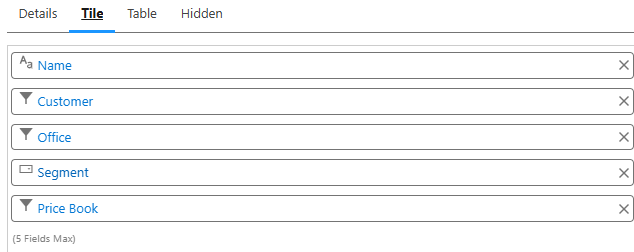
The layout of this tab, used when the layout is shown in a portrait orientation, is basically the same as the Details tab except for:
-
No New Blank Space button
-
No New Section button
Only a total of five fields can be displayed.
Pick key fields you want to appear on each tile (title, sub-lines, badges, etc.) so users can scan and identify items quickly.
Limit the tiles to essential information to optimize the scroll performance on mobile.
If you want quicker at-a-glance comprehension for Mobile users, use tiles. Tiles enable the user to see essential information without opening each record.
|
A tile displays a maximum of five fields, in the order set under Selected Fields. The first field displays as the tile heading. |
Table Tab
The layout of this tab, used to show items in a list view and grid view, is shown in a landscape orientation. This view allows the user to view and edit multiple records.
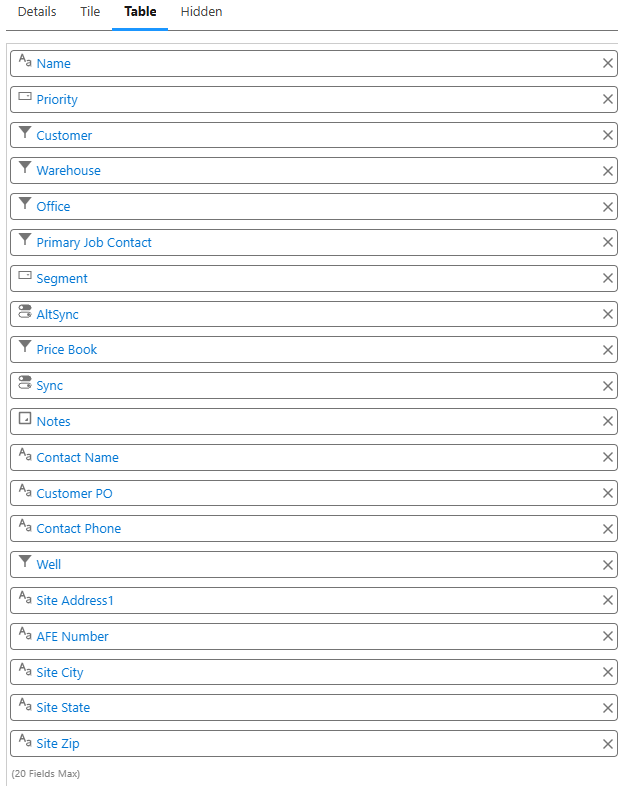
It is basically the same as the Details tab except for:
-
No New Blank Space button
-
No New Section button
A maximum of 20 fields can be displayed.
You can choose which columns the mobile user sees and their order.
|
An improvement to the grid is a locked first column, alternating row colors, and a clearer active cell styling all for better user navigation during bulk edits. |
Unresolved include directive in modules/adminportal/pages/SyncProfMgr_TransObjLayoutReference.adoc - include::base:MobileRNApp:partial$FXM_FFX5240_GeolocFieldsColsnotshown.adoc[]
Hidden Tab
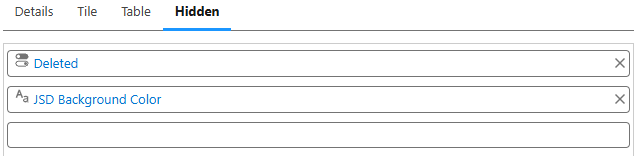
This tab includes fields in the sync payload that should not display in any UI (detail, tile, or table). They are required however for rules, filters, or automation.
Mark supporting fields (IDs, flags, derived values) as hidden so they sync for logic/filters while staying out of the UI.
Keep the visible UI clean while ensuring background SOQL filters and other conditions remain fully functional.
If a field is needed for sync logic, calculations, or back‑office processes but adds noise or confusion if shown to end users, use this view.
Field Details Tabs
These tabs give admins granular control over Data Visibility, Sync Efficiency, Dynamic data presentation, and User experience in lookups
The tabs are comprised of:
| Tab Name | Purpose | Usage | ||||||||||||||||||||||||
|---|---|---|---|---|---|---|---|---|---|---|---|---|---|---|---|---|---|---|---|---|---|---|---|---|---|---|
Field Properties |
Visibility and behavior of individual fields for transactional objects in the FieldFX Mobile App. |
The specifics of the highlighted field (from the details tab) can change depending on the field. They are:
|
||||||||||||||||||||||||
Synced Fields |
The fields that are synced between Back Office and the mobile device. They are critical to ensure mobile user have the needed data and not overload the device. Example: You can sync "Job ID" and "Customer Name", but skip internal audit fields. Here is a sample table: |
This tab has two columns:
Reference for Synced Fields Tab in Transaction Objects Layout
This table shows typical examples of fields synced for a Transaction Object Layout. The Name column lists the API names of transactional fields, and the Added By column indicates how each field was introduced into the layout.
|
||||||||||||||||||||||||
Cross Object Formula Fields |
Admins can create formula fields that pull data from related objects. |
|
||||||||||||||||||||||||
Mobile Lookup Filter |
This tab controls which records appear in lookup dialogs on the FieldFX Mobile App. To see the filter, click on the lookup field. The lookup field must be editable to have a Mobile filter. |
|