Lookup Layouts Editor Reference
Lookup Layouts Editor
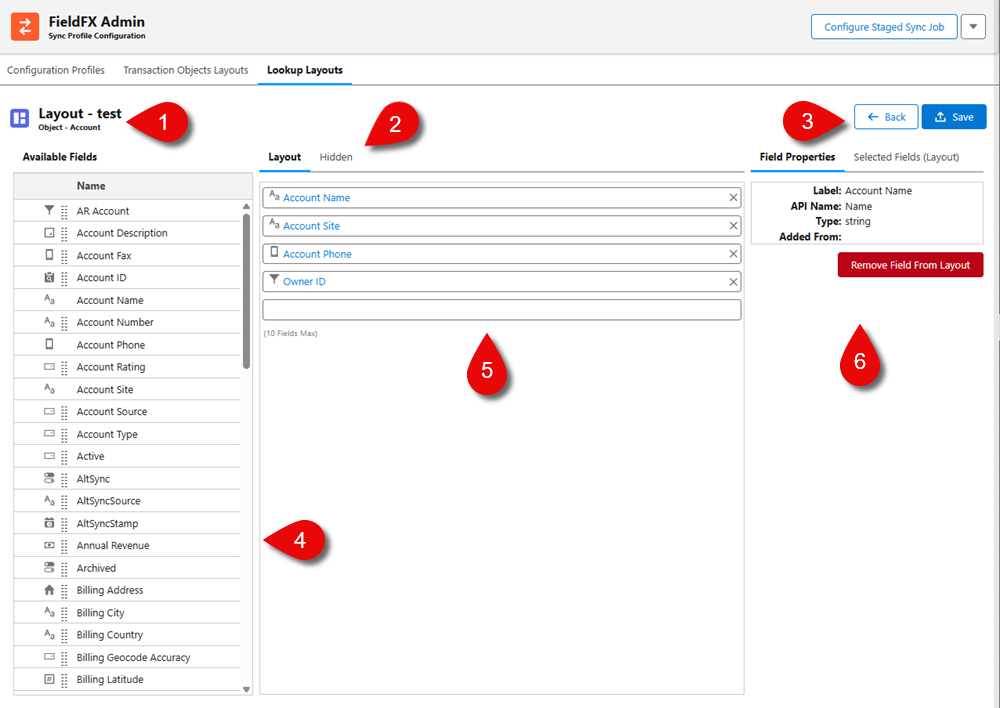
| Callout | Name | Description | ||||||
|---|---|---|---|---|---|---|---|---|
1 |
Layout Title |
The name of the layout plus the object that the layout is based on. |
||||||
2 |
Tabs |
There are 2 tabs in the Edit screen:
|
||||||
3 |
Action buttons |
The Back button returns to the list of lookup layouts while the Save button saves any changes to the open layout. |
||||||
4 |
Available Fields |
The list of available fields that can be used on a lookup layout are more extensive than for a transaction object layout and can vary depending on the object chosen at layout creation. |
||||||
5 |
Fields list |
You can drag up to 10 fields maximum and arrange them in any order. |
||||||
6 |
Field Properties |
They can vary depending on the field.
|
Layout Tab
This tab is the design canvas where you can configure how fields appear in the FieldFX Mobile App. Drag a field from the Available Fields list over to the canvas and arrange them for the lookup object. The defined layout determines what users see when interacting with lookup records such as Accounts and Equipment in the mobile app. Different orientations and views (landscape, tile, table) are supported. The primary purpose is a visible UI design for mobile users.
|
When a Lookup Layout is first created, FieldFX automatically copies the associated object’s Salesforce search layout as the starting point for this tab. Unlike Transaction Object Layouts, there is currently no button or process to reset the layout back to the Salesforce version, or to re-import it, once you begin editing. See Import a Layout for the Transaction Object process. |
Hidden Tab
This tab defines which fields shouldn’t appear in the user interface but are important for business rules, filters, and automation logic. These fields remain part of the sync profile so calculations, workflows, or conditional logic can correctly run, even though the end user never sees them.
File Details Tabs
| Field Properties tab | Synced Fields tab |
|---|---|
|
|
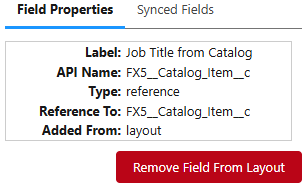
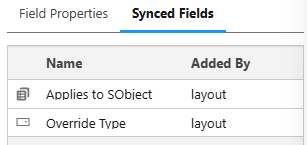
These tabs provide admins are comprised of:
| Tab Name | Purpose | Usage | ||||||||||||||||
|---|---|---|---|---|---|---|---|---|---|---|---|---|---|---|---|---|---|---|
Field Properties |
Visibility and behavior of individual fields for transactional objects in the FieldFX Mobile App. |
The specifics of the highlighted field (from the details tab) can change depending on the field. They are:
|
||||||||||||||||
Synced Fields |
The fields that are synced between Back Office and the mobile device. They are critical to ensure mobile user have the needed data and not overload the device. Example: You can sync "Job ID" and "Customer Name", but skip internal audit fields. |
This tab has two columns:
Synced Fields tab within a Sync Profile Manager Lookup Layout. The Name column lists the API names of synced fields, and the Added By column indicates how each field was introduced into the layout (Default, Manual, or Global):
|