Customize Overall DataGuide Form Settings
You can change the overall settings of a DataGuide form by clicking  in the Designer subtab under the Form Designer tab.
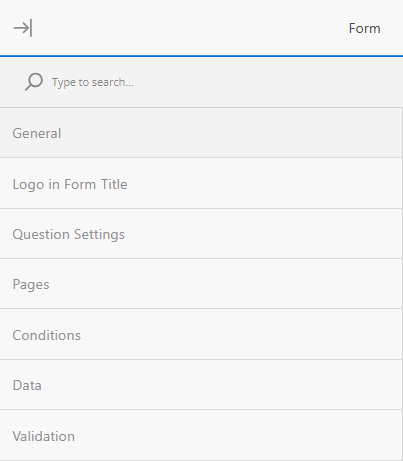
The settings are grouped into seven areas:
Use the Search field at the top to find a specific setting.
General
In this section (which is only editable if the form is in draft mode), you can change the form’s title, description, and select the Make the title and description visible checkbox.
Additionally, you can set the Width Mode to:
Auto |
Applies either the Static or Responsive options depending on the question types used |
Static |
Sets the form at a fixed width |
Responsive |
Sets the form to full width of the screen. |
If you want to change these options, make a duplicate of the form. In Form Manager, click the option arrow next to the form you want to change. Select Clone to copy the form will all the same questions and options.
Logo in Form Title
You can add a custom logo in this section by selecting a image file or image logo link (no size limit), set the width and height in CSS units (px, %, in, pt, etc.). You can also define the fit of the logo:
None |
image maintains its original size |
Contain |
image is resized to fit while maintaining its aspect ratio |
Cover |
image fills the entire box while maintaining its aspect ratio |
Fill |
image is stretched to fill the box without maintaining its aspect ratio |
Question Settings
You can set each question in the form to look and behave differently. You can control:
Question description alignment |
Align the question’s alignment to either under the title or the input area. |
Question numbering |
Sets either an automatic numbering, no numbering, or resets the numbering on each new form page. |
Question title pattern |
Sets the title pattern for a question. Choose from:
|
Use a symbol or a sequence of symbols indicating that an answer is required. |
|
Question indexing type |
Enter a number or letter with which you want to start numbering. |
Error message alignment |
Sets the location of an error message in relation to the question with invalid input. Choose between:
|
Restrict answer length |
Enter the maximum allowable characters allowed for only text entry questions. |
Restrict comment length |
Enter the maximum allowable characters for question comments only. |
Comment area height (in lines) |
Sets the number of displayed lines in text areas for question comments. If the input takes up more lines, the scroll bar appears. |
Allow users to resize text areas checkbox |
Allow users to resize text areas for question comments and Long Text questions only. |
Grid layout enabled |
Sets a grid for form layout. |
Pages
From this setting, you can add new pages or delete existing pages from the form.
Click  to add a new page. In the table, click
  next to the page you want to delete.
Show page titles checkbox |
Show or hide page titles on the form. |
Show page numbers checkbox |
Show or hide the page numbers in the form. |
Conditions
Question conditions for a form depend on triggers. A trigger is an event or condition that is based on an expression. Once the expression is evaluated to "true", a trigger sets off an action. Such an action can optionally have a target question it affects.
Add Trigger
-
If there are no triggers, click Add new trigger to add a new trigger.
-
Set when the trigger occurs in the Run expression dropdown.
Choose from:
complete form
Marks the form as complete when the trigger criteria are met.
Set answer
Sets the answer of another variable or question when the trigger criteria are met.
Copy answer
Copies the answer to a variable or question when the trigger criteria are met.
Skip to question
Allows the user to proceed to a selected question when the trigger criteria are met.
Run expression
Runs a logical sequence when the trigger criteria are met.
-
In the Expression box, click
 to configure the expression.
-
At the Expression modal, use the Select… dropdown to select a question on the form.
A preview of the question appears below.
-
Click the logical operator dropdown and select an operator:
-
Empty
-
Not empty
-
Equals
-
Does not equal
-
Contains
-
Does not contain
-
Greater than
-
Less than
-
Greater than or equal to
-
Less than or equal to
-
-
Click Add Condition and set the dropdown to either AND or OR.
-
If AND, both conditions must be true
-
If OR, either one of the conditions must be true.
-
-
Set the Select… dropdown to a question on the form.
-
Use the Empty/Not Empty dropdown to set if the question is empty or not.
-
You can either add a new condition or click Apply.
If the expression is invalid, an error message briefly appears directing you to correct this.
The expression syntax appears in the box.
-
-
Click
to edit the expression or to clear the expression.
Data
Set how entered data is handles in the form.
Clear invisible values |
Select one of the following options:
|
Update text question value |
Select an option to update the stored response to a question.
|
Store the Others value in a separate field |
Saves the value of the 'other' text box. |
Validation
To run error checking, select these options:
Set focus on the first invalid answer |
Moves the cursor to the first question when an invalid response is entered. |
||
Run validation |
Select one of the following options to run validation.
|
Recommended Reading
For more information, see:
| FieldFX Documentation | PTC ServiceMax Help Center | Salesforce Documentation |
|---|---|---|
|
|