FXL Bundle Maker

The FXL Bundle Maker enables dynamic parenting within the FXL Data Grid for Tickets, Quotes, Invoices, and Price Books. You can use the FXL Bundle Maker with the FXL Data Grid to create a bundle of child items and associate them with a parent item. After selecting the items on the grid to bundle as children of another item, select the parent.

The parent can be either:

  1. An item that already exists on the grid

  2. A new item to add to the grid

The FXL Bundle Maker responds to the selections you make at each step of using it.

  • The FXL Bundle Maker becomes active with the options specifically available for the items you initially select

  • Only items with dynamic parenting enabled can be selected as the parent

  • On the Job Resources grid,

    • The parent item’s quantity is locked to 1 and cannot be changed

    • Bundles must be added to a Delivery Ticket as a whole — you cannot split a bundle across multiple Delivery Tickets

To use the FieldFX Lightning package starting with version 1.291, you must use the FieldFX Managed Package version 1.672 or higher.

Job Resource Bundles

Both the FXL Bundle Maker and the Job Resource grid are Lightning components. The FXL Bundle Maker can be placed inside or next to the Job Resource grid component on the record page. It can also be used in the Price Book to define bundles before they are added to a Job.

If you use the FXL Bundle Maker on the Job Resources grid, the following behaviors apply:

Parent Quantity

The quantity of a parent Job Resource is locked to 1 and cannot be changed. A parent Job Resource is one whose Price Book Item has FX5__Enable_Dynamic_Parenting__c = true.

If adding a bundle from a Price Book or Quote Item with a quantity of n, the system creates n separate Job Resource bundles, each with its own set of child items.

If the Price Book Item bundle includes a serialized asset or serialized consumable with a quantity greater than 1, the system does not create separate child items for each individual serialized item. This is a known system limitation.

Bundle Status Behavior

When a parent-child bundle is added to a Job, the initial statuses depend on the parent’s Item Type:

Table 1. Initial Status by Parent Item Type
Parent Item Type Parent Status on Add Child Status on Add

Service

On Site

On Site (all children, regardless of child item type)

Labor

On Site

On Site (all children, regardless of child item type)

All other types (Equipment, Bulk Asset, Serialized Asset, Bulk Consumable, Serialized Consumable)

New

Child labor/service items → On Site

All other child items → New

When a Delivery Ticket is created from a non-Service/Labor parent bundle, all items (parent and children) transition to In Transit.

Generating Delivery Tickets from Bundles

When you select a parent-child bundle on the Job Resources grid and click Generate Delivery Ticket:

  1. The Create Delivery Ticket dialog displays only the parent item. Child items are not shown in the dialog.

  2. Clicking Create Ticket generates the delivery ticket with the parent and all eligible child ticket items (see exclusions below).

  3. Each created ticket item (parent and child) has a job resource link (FX5__Job_Resource__c) back to its corresponding Job Resource record.

  4. Child Job Resources with Item Type = Labor or Service are excluded from the delivery ticket items. Delivery Tickets are for materials only. These labor and service items remain as Job Resources on the Job but do not generate corresponding ticket items on the Delivery Ticket.

    A bundle can only be added to a Delivery Ticket as a whole. You cannot select individual items from a bundle to send on separate Delivery Tickets.

Delivery tickets created from job resource bundles follow the same rules as other tickets created from job resources:

  • The Rule Engine does not run.

  • Price Book Required Items do not run.

  • No additional ticket items are auto-added by rules or required-item logic.

Add any needed items to these tickets manually.

Add Items to an Existing Bundle

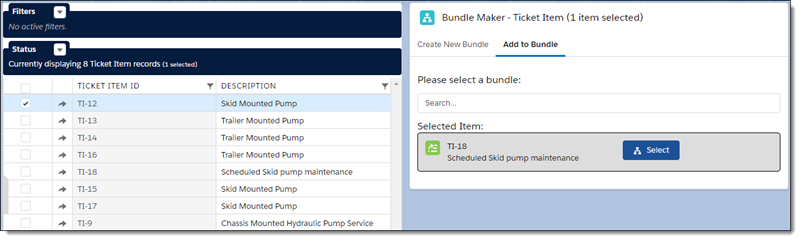
  1. Select the item(s) you want to add to the bundle in the FXL Data Grid.

  2. Click Add to Bundle in the FXL Bundle Maker.

  3. To add the item(s), search for and select a bundle.

  4. Click Select.

    Adding items to a bundle

Create a Bundle of Items

  1. Select the items in the FXL Data Grid to be included in the bundle as child items.

  2. Click Create New Bundle in the FXL Bundle Maker.

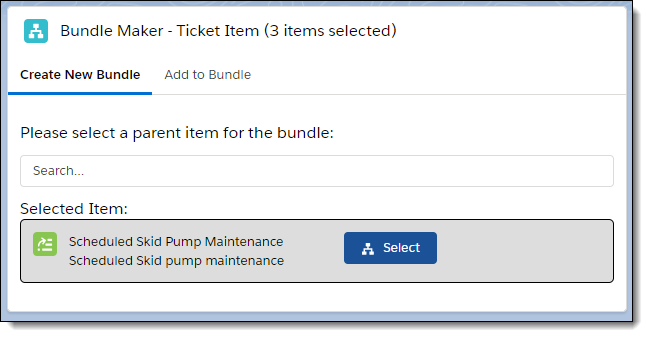
  3. Search for and select a parent item for the bundle.
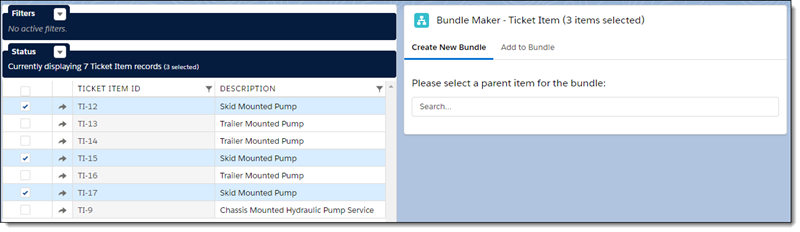
    Specify a parent item for the bundle
  4. Click Select

    Confirm the selected parent item
  5. Confirm the items in the bundle are listed and marked together in the FXL Data Grid.
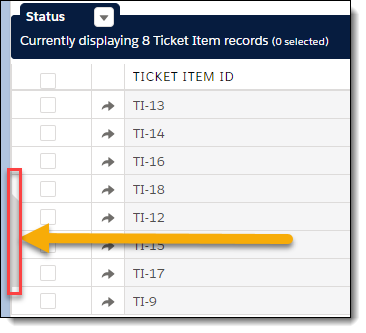
    Example of bundled items displayed in the Grid

Drag and Drop Items in the Bundle

You can physically drag and drop items in a bundle so you can:

  • Drag an item onto a child item to set it as a child item’s sibling (same level)

  • Drag a child item to whitespace to remove it from the bundle

You can also drag and drop items for Quote and Invoice items.

Before you can drag and drop items, ensure that the Enable Drag and Drop Bundlemaker is enabled.

First Time Enable Drag and Drop

The setting only needs to be enabled one time.

  1. In Back Office, click Setup gear icon.

  2. In the Lightning App Builder, click on the Items table.

  3. In Page > FXL Data Grid v2, scroll down to Enable Drag and Drop BundleMaker.

  4. Click Save.

Use Drag and Drop to Arrange Items in a Bundle

Icons appear in the Data Grid for you to move individual items.
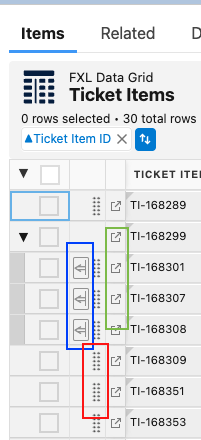
FXL Data Grid Icon Key
  • Blue square - Use this icon to move a child item back to the root (Dark Blue square).

  • Red Square - Click and hold on to drag an item

  • Green Square - Click to open the item in a new browser window

Remove Items from a Bundle

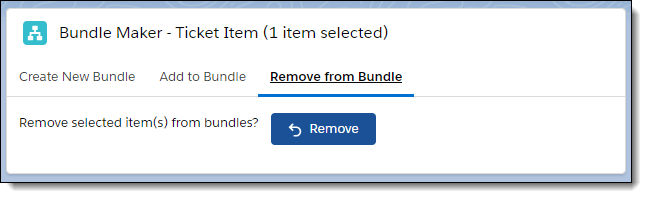
  1. Select the item(s) you want to remove from the bundle in the FXL Data Grid.

  2. Click Remove from Bundle in the FXL Bundle Maker.

  3. Click Remove.

    Example of removing an item from a bundle

For more information, see:

FieldFX Documentation Salesforce Documentation
  • Job Resources — Object schema, status definitions, and inventory movement

  • Job Resource Use — Adding bundles from Price Book or Quote, generating Delivery Tickets

  • Dynamic Parenting — How dynamic parent-child relationships work across FieldFX objects

  • Price Book Item Setup — Enabling FX5__Enable_Dynamic_Parenting__c on a Price Book Item

none